

Keep event colors
Many people color events by type or person, e.g. installations green, client meetings red. Others just want to see in the target calendar which calendar an event came from. “Keep event colors” does both.
The option is available from the Basic plan, for your own syncs and for sharings with other people, in either direction and at every visibility level.
The three settings
Section titled “The three settings”| Setting | What happens in the target calendar |
|---|---|
| Off | All copies in the target calendar’s color. |
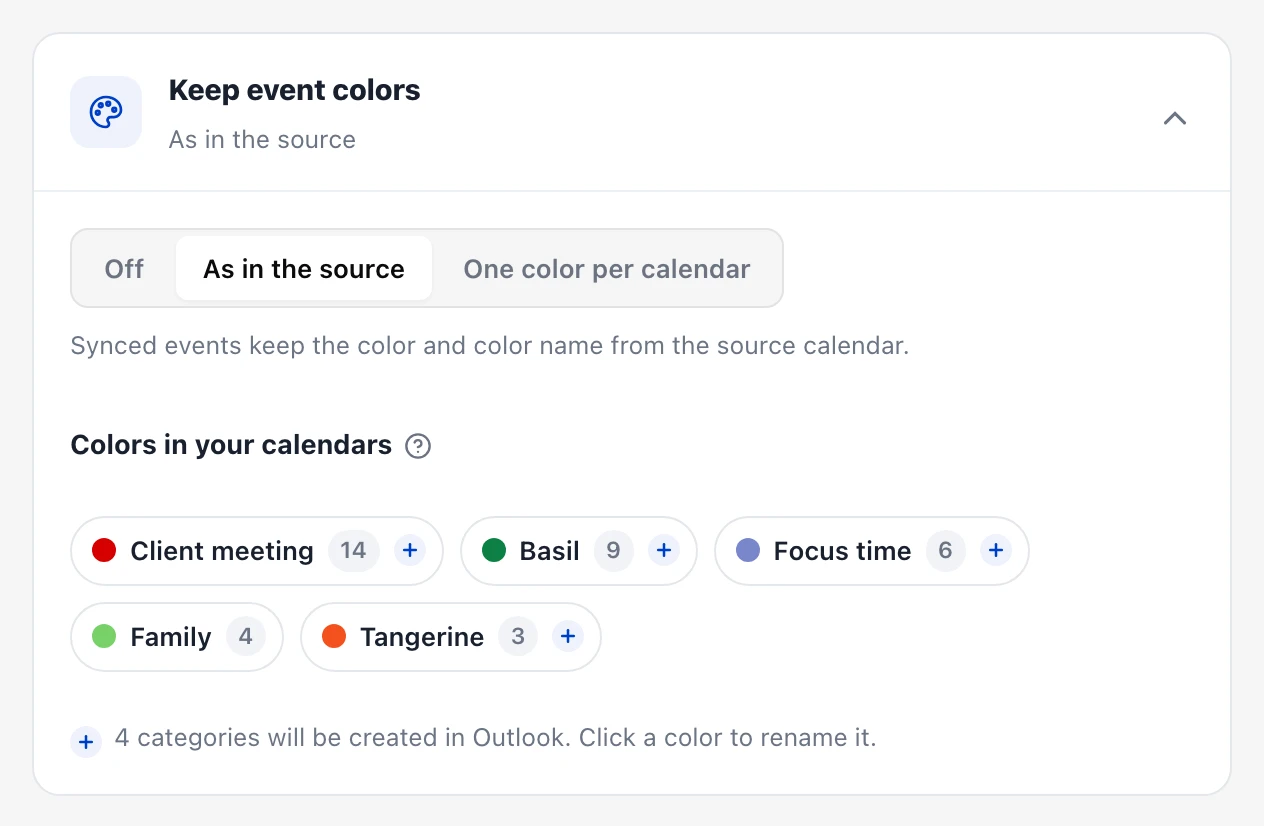
| As in the source | Every copy keeps its color and its name, e.g. “Installation team” in red. |
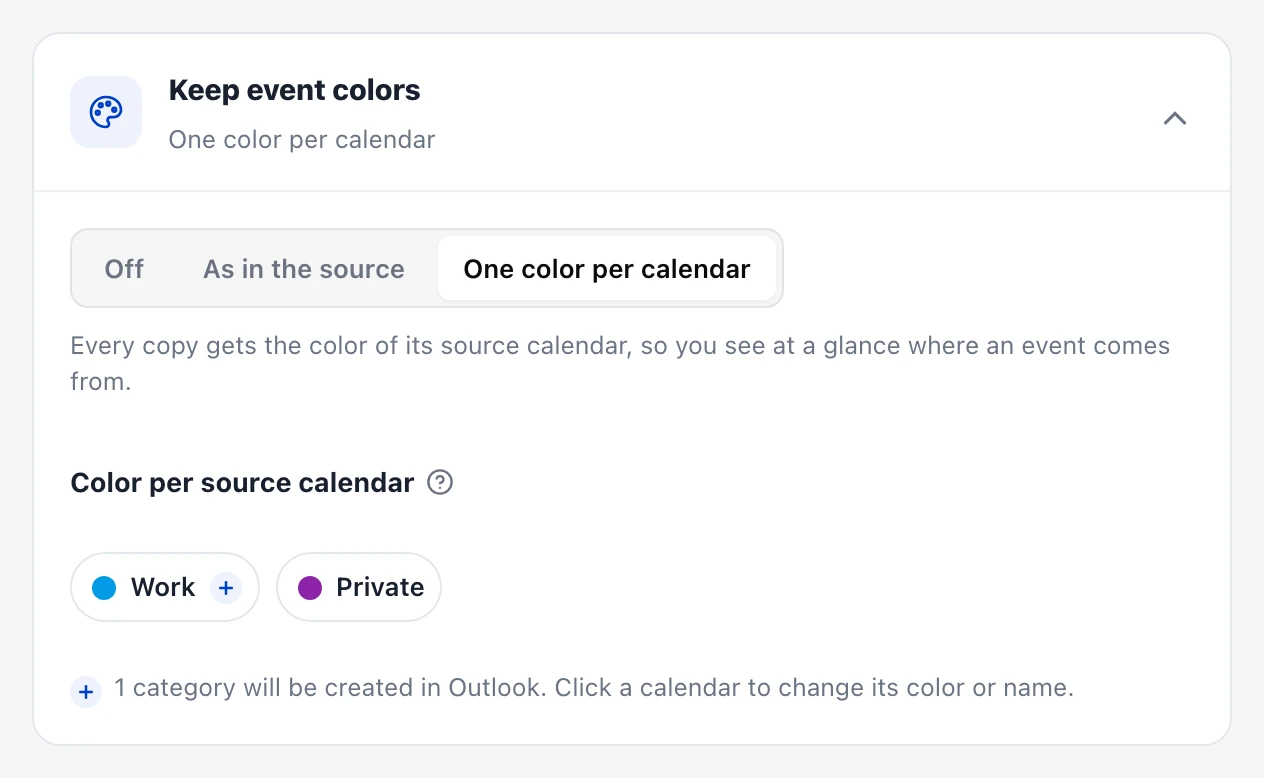
| One color per calendar | Every copy gets the color of its source calendar, e.g. everything from “Work” blue, everything from “Club” green. The color is named after the calendar. |
How it works
Section titled “How it works”- When setting up the sync (or later via “Edit”), open the “Keep event colors” card.
- Choose one of the three settings. New syncs between your own calendars start with “As in the source”, except at the “Busy only” visibility. For sharings with other people the option starts off.
- As in the source: the card lists the colors used in the next four months. Click a color to rename it in the target calendar.
- One color per calendar: click a calendar to pick its color from Google’s 24 colors and, if you like, a different name.
Events that were already synced are then rewritten automatically.
How the color travels
Section titled “How the color travels”A color arrives with its name. Without a name we use Google’s color name, e.g. “Basil” or “Cocoa”.
| Calendar | How the color arrives |
|---|---|
| as a Google color (label) with the same name. If the target calendar lacks it, we create it: all 24 Google colors and custom colors. | |
| Outlook / Microsoft 365 | as a category with the same name. Outlook has 25 category colors; we use the closest. |
| CalDAV (e.g. Disroot, GMX, WEB.DE, mailbox.org) | as the event’s color property (COLOR) |
| Apple iCloud | not possible: Apple Calendar only has calendar colors, no per-event colors. The option is therefore not offered for iCloud target calendars. |
With CalDAV, the calendar app decides whether it shows the color. Nextcloud and Evolution do; DAVx5 does once you turn it on in its settings.
Outlook: categories
Section titled “Outlook: categories”- If the category exists, we just assign it. Your color for it stays.
- If it is missing, we create it with a matching color. Outlook sometimes shows newly created categories in color only after a few hours; until then they appear gray.
- Please rename in Kalender Sync, not in Outlook. If you rename a category in Outlook, we create the old name again on the next sync. You can change a category’s color in Outlook at any time (Settings › Account › Categories).
- Your own categories stay: if you add a category to a synced event yourself, we do not remove it.
- From Outlook to Google: in Outlook, give an event a category via “Categorize”. In Google it arrives as a color with the same name.
Permission for Outlook categories
Section titled “Permission for Outlook categories”Usually Kalender Sync creates categories without further steps. If Microsoft asks for an additional permission, a “Grant permission” button appears:
- for your own syncs under “Edit”, for an Outlook-to-Outlook sync for both mailboxes,
- for sharings with you on the dashboard: only you can grant it for your mailbox.
We do not read or change any other mailbox settings. Without the permission the sync keeps running as usual, just without colors. If your organization requires IT approval, your IT team finds the details under For IT admins.
Google colors in the target calendar
Section titled “Google colors in the target calendar”Only the owner of a calendar can add Google colors (labels) to it. If the target calendar is only shared with you, we use the closest of Google’s 11 classic colors.
Sharings with other people
Section titled “Sharings with other people”When you share your calendar with someone, you decide whether colors come along. With “As in the source” the other person also sees the color names, e.g. “Doctor”. With “One color per calendar” they only see which of your calendars an event comes from. The invitation already tells them that colors come along.
Good to know
Section titled “Good to know”- Turning it off: colors that were already synced stay on the copies.
- Same both ways: in a two-way sync, a color comes back with the same name.
- Via AI assistant:
create_synckeeps colors with the same default as the app, andlist_syncsshows the setting. Changing it happens in the app → Syncs via assistant.