

Connect Apple iCloud
BasicAvailable on Basic and upCompare plans
Apple doesn’t offer a sign-in window for calendar apps like Google or Microsoft do — the connection runs over CalDAV with an app-specific password. It sounds more technical than it is: created once, everything runs automatically. Sync picks up changes every 5 minutes.
1. Create an app-specific password
Section titled “1. Create an app-specific password”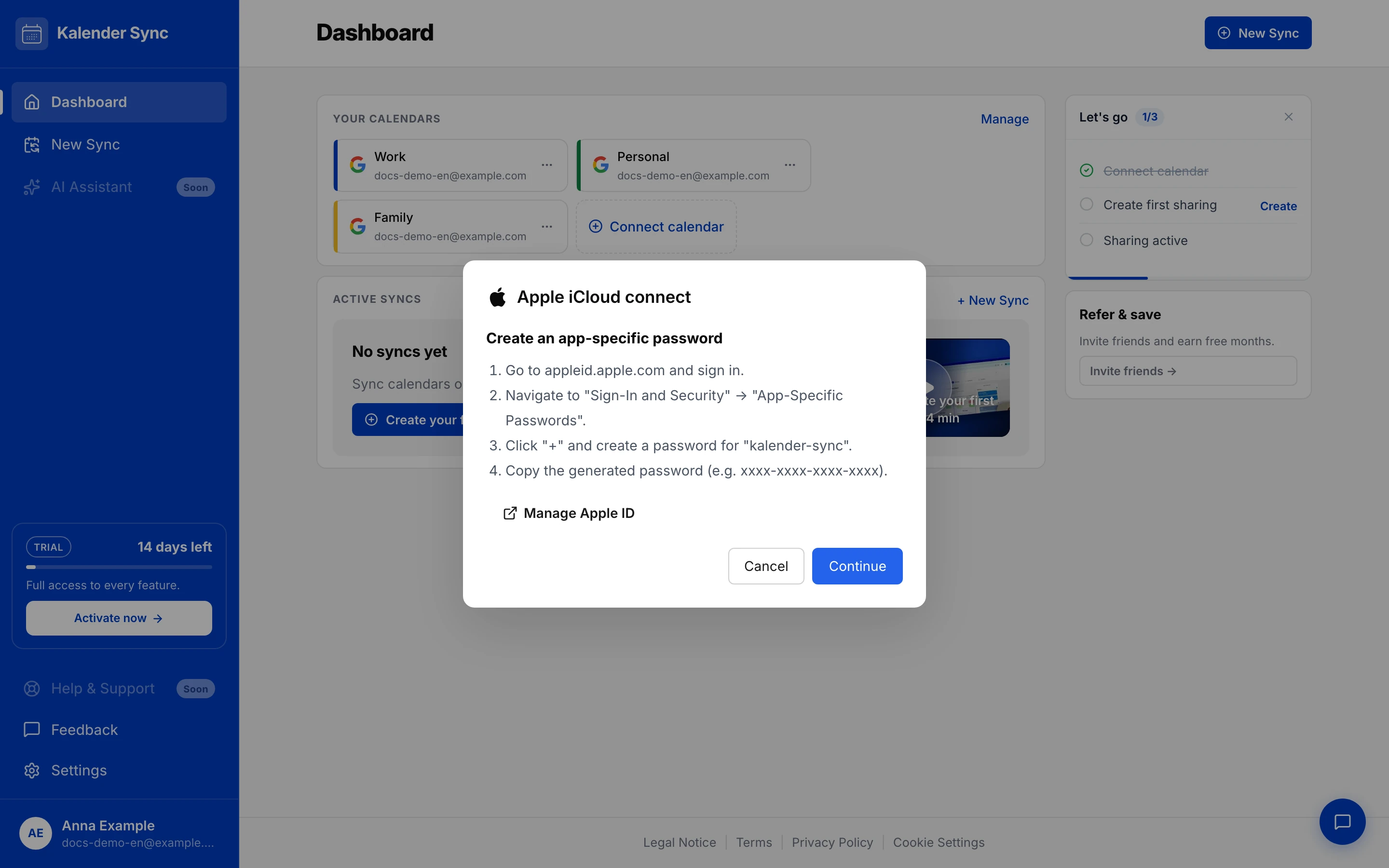
- Open appleid.apple.com and sign in.
- Go to “Sign-In and Security” → “App-Specific Passwords”.
- Click ”+” and create a password, e.g. named “kalender-sync”.
- Copy the generated password (format:
xxxx-xxxx-xxxx-xxxx).
Prerequisite: two-factor authentication is enabled on your Apple account (true for almost all accounts — without it, Apple doesn’t offer app-specific passwords).
2. Connect in Kalender Sync
Section titled “2. Connect in Kalender Sync”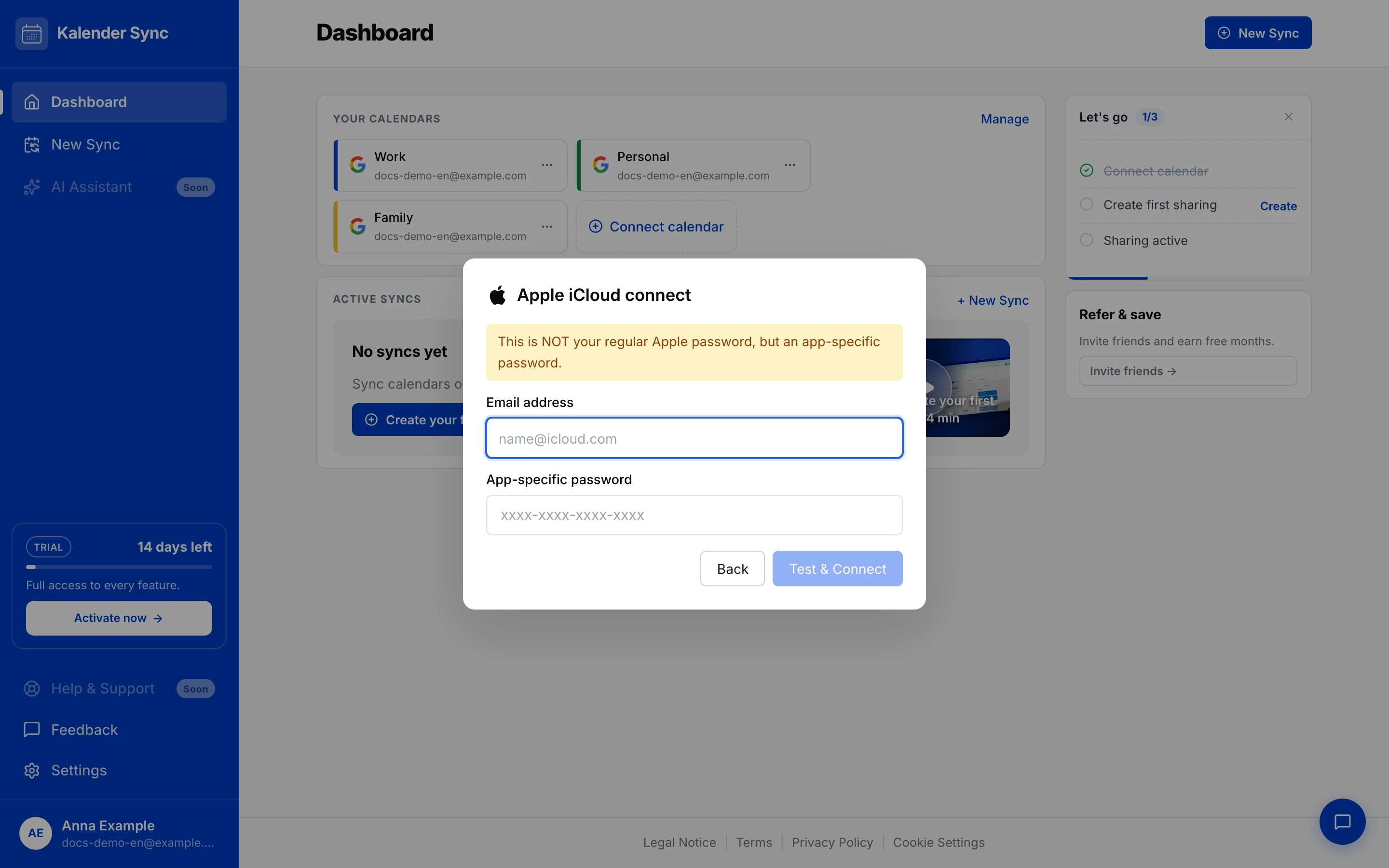
- In the dashboard: “Connect calendar” → “Apple iCloud” → “Continue” to the form.
- Enter the email address of your Apple ID (e.g.
name@icloud.com). - Paste the app-specific password and click “Test & Connect” — Kalender Sync verifies the connection immediately.
If “sign-in failed” appears
Section titled “If “sign-in failed” appears”- Typo in the password? Best to paste it fresh instead of typing.
- Did you really use the app-specific password, not the regular one?
- Password revoked at Apple in the meantime? Simply create a new one (step 1).
Ending access
Section titled “Ending access”In Kalender Sync: remove the calendars. You can also delete the app-specific password at appleid.apple.com any time — access ends immediately.