

I received an invitation
You received an email like ”… wants to share calendars with you”? Then someone wants to share their availability: their events will automatically appear as blockers in a calendar of your choice. This page walks you through accepting — even if you’ve never used Kalender Sync before.
What’s in the invitation
Section titled “What’s in the invitation”The email shows you who is sharing, which calendars are involved and at what visibility (e.g. “Availability only” — then you only see busy times without details). “Accept invitation” gets you started.
Good to know: the link is valid for 7 days and can be used once. Until you sign up, you won’t receive any further emails.
Accepting the invitation — step by step
Section titled “Accepting the invitation — step by step”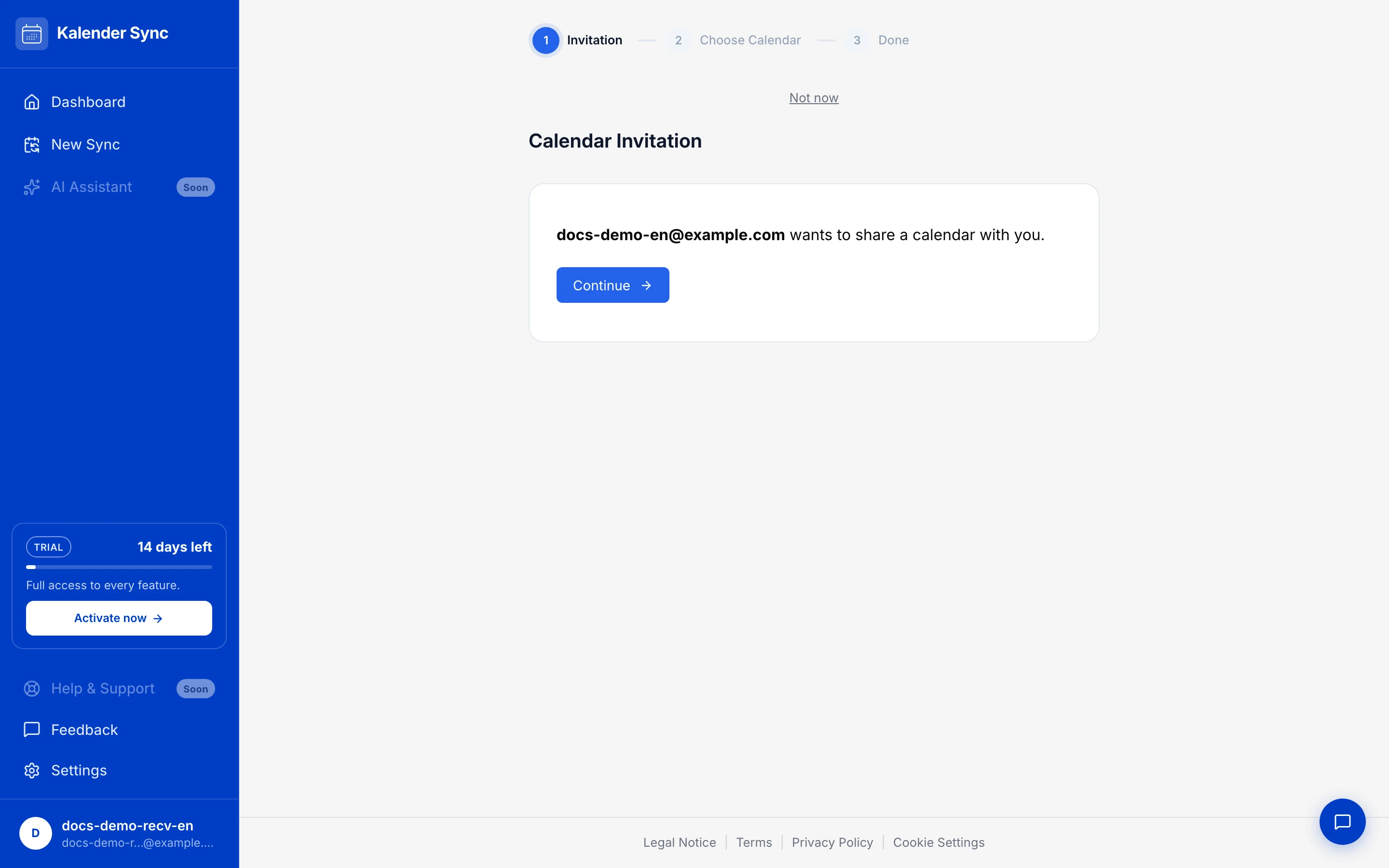
- Open the link. You’ll see who wants to share with you; accepting walks you through three steps (Invitation → Choose calendar → Done).
- Sign in. If you don’t have an account yet, registering takes a moment (free) — via email code or with Google/Microsoft (how signing in works). Afterwards you land back in the invitation.
- Choose a target calendar. You decide where the blockers go:
- “Create new calendar” (recommended) — Kalender Sync creates a dedicated calendar, named after the sender by default; you can change the name freely. Your main calendar stays untouched and you can show/hide the shared events any time.
- “Choose existing calendar” — the blockers go into an existing calendar.
- Done. The initial sync starts in the background and can take a few minutes — you’ll receive an email once it’s complete.
What you see — and what you don’t
Section titled “What you see — and what you don’t”- Depending on the chosen visibility level you see only “busy”, title + time, or full details — the sharing person decides this.
- Attendee lists, email addresses and accept/decline responses are never transferred.
- The received blockers are not meant to be edited: if you change or delete them, the next sync restores them. The events belong to the source side.
Ending the sharing
Section titled “Ending the sharing”You’ll find the sharing in your dashboard under “Shared with me”. “End” stops it at any time — all blockers created by Kalender Sync are automatically removed from your calendar.
Link expired or invalid?
Section titled “Link expired or invalid?”If you see “Invalid or expired invitation link”, the 7-day window has passed or the link was already used. Simply ask the sender to send you a new invitation.